
Tour the dashboard
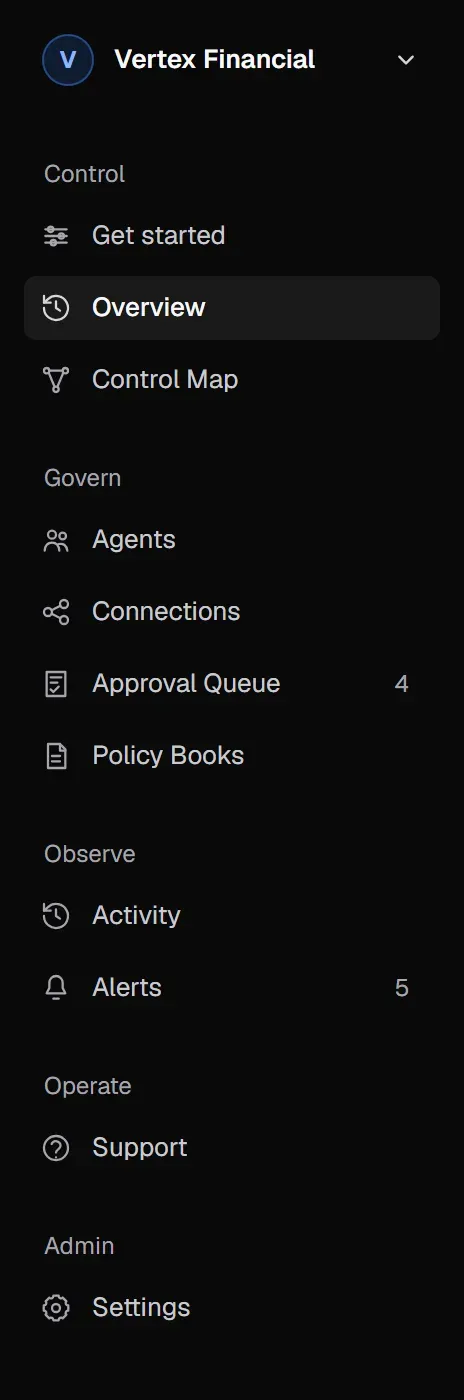
The Aethis dashboard is organized around one loop: register Agents, connect them to tools, govern what they may do, and observe what they did. The sidebar follows that order.
The top bar
Section titled “The top bar”- Organization switcher (top left): switch between organizations you belong to, or select Manage organizations.
- Workspace switcher: switch between workspaces in the current organization, such as Production and Staging, or select Manage workspaces. Almost everything in the dashboard is scoped to the current workspace.
- Search Aethis (Ctrl K): search across the dashboard.
- Notifications: the bell shows new items that need you.
Control
Section titled “Control”| Surface | What it’s for |
|---|---|
| Get started | Guided journeys. Protect your first Agent walks you through the Quickstart. Others cover connecting an app, bringing in a reviewer, the Control Map and alerts. |
| Overview | The state of the workspace at a glance: requests today, active Agents, healthy connections, gateway overhead, what needs attention, and connection health. |
| Control Map | A graph of what each Agent can reach and which policies apply. See Read the Control Map. |
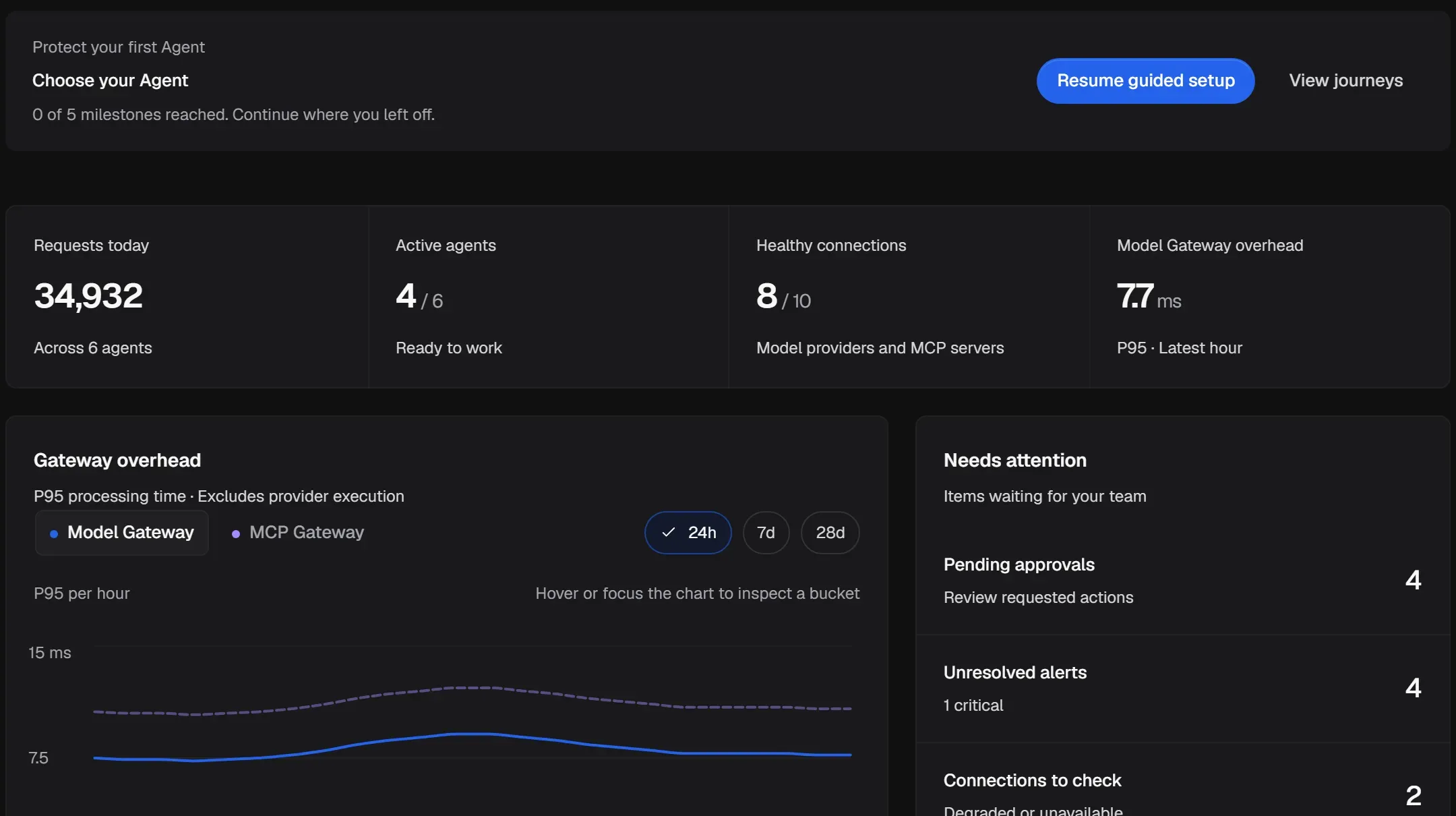
Needs attention is the fastest route to work: it counts pending approvals, unresolved alerts, and connections that are degraded or unavailable.
Govern
Section titled “Govern”| Surface | What it’s for |
|---|---|
| Agents | Register Agents and manage each one’s Overview, Connections, Policies and Tools. See Register an Agent. |
| Connections | Add MCP servers (and OpenAI Model Routes), connect accounts, refresh and review tools. See Connect an MCP server. |
| Approval Queue | Actions held for a person. The sidebar badge counts active requests. See Review the Approval Queue. |
| Policies | Create, publish and assign the rules Aethis applies. See Create and publish a Policy. |
Observe
Section titled “Observe”| Surface | What it’s for |
|---|---|
| Activity | Every governed action, as a Timeline or a list of Action Records. See Investigate in Activity. |
| Alerts | Operational problems that need an owner, such as a changed tool or a policy conflict. See Respond to Alerts. |
Operate
Section titled “Operate”Support lists your support tickets with Aethis and lets you open a new one with Create Ticket.
Settings has three scopes:
- Personal: your account and sign-in security. Open it from your name at the bottom of the sidebar.
- Workspace: the current workspace’s details, members and access, and defaults.
- Organization: members, roles, workspaces, SSO and organization-wide governance defaults. See Manage your organization and workspaces.
Guided journeys
Section titled “Guided journeys”Get started lists every guided journey. Each one opens on the real page and highlights the control to use, with a short card that explains the step.
- Select Pause tour on the card, or press Esc while the card has focus, to pause.
- Press F6 to move focus between the card and the highlighted control.
- Return to Get started and select Resume to continue where you left off.
The journeys never submit a form, publish a policy or approve an action for you. You make every change yourself.