
Create and publish a Policy
A Policy decides what happens to each governed action: Allow, Require Approval or Block. You work on a draft, publish an immutable version, and assign it. For the model behind this, see Policies and decisions.
Before you begin
Section titled “Before you begin”- Create or identify the target Connection and Agent in the intended workspace.
- Confirm the tool’s definition and meaning. Amount rules need a known unit and currency.
- Write down representative actions that should be allowed, held and blocked. Include boundary values.
- Decide who will review approval requests and what should happen if no rule decides an action.
Create a Policy
Section titled “Create a Policy”-
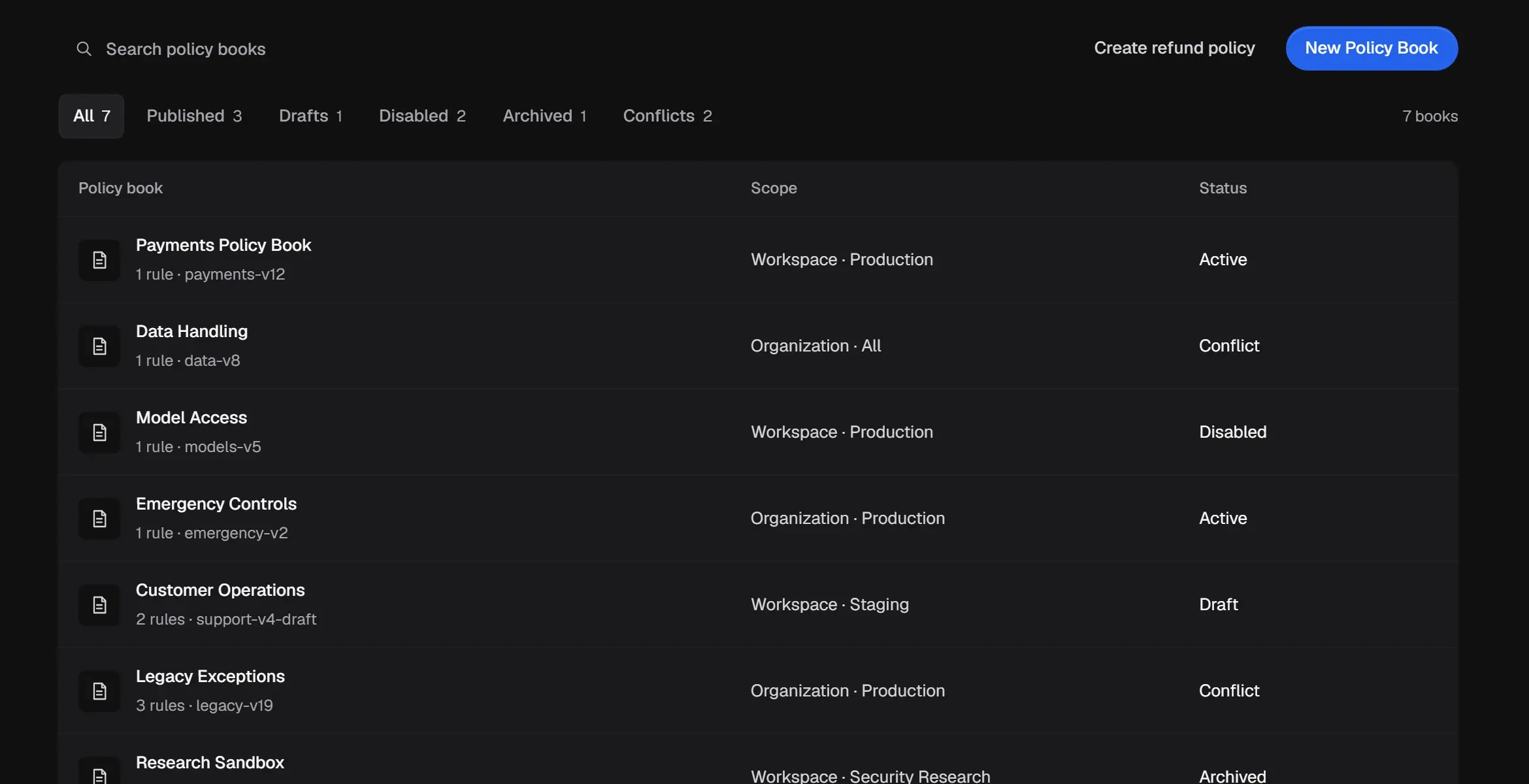
Open Policies and select New Policy.
-
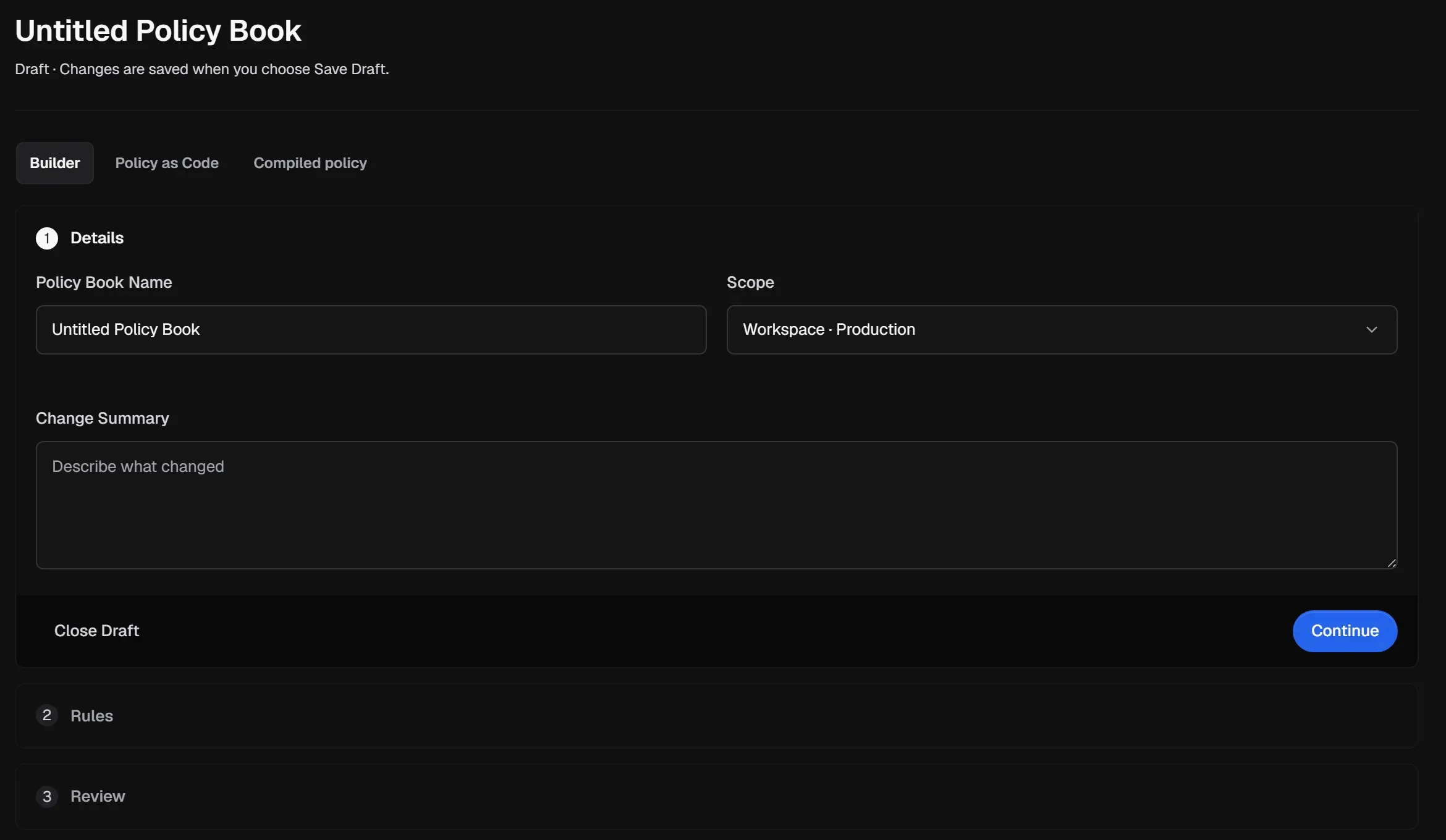
Details. Enter a Policy Name, choose the Scope (for example Workspace · Production or Organization · All), and describe the change in Change Summary. Select Continue.
-
Rules. Select Add rule for each rule. For an MCP tool rule, choose the Subject (who it applies to), the Connection, the discovered Tool, the Resource, an optional Condition, the Decision and its Priority. The builder reads each rule back as a sentence so you can check it.
Keep same-scope conditions disjoint. For example, use non-overlapping refund bands: allow through SGD 500, require approval above SGD 500 through SGD 1,000, and block above SGD 1,000. Do not depend on the numeric priority field to settle overlapping decisions.
-
Review. Check the rules and select Validate draft. Fix anything marked invalid.
-
Select Save Draft. Drafts don’t affect any Agent.
-
Select Publish Version. Aethis creates an immutable version with its own version label and hash.
Expected result: the Policy has an Active published version with a version label and hash. Publishing preserves the version; assignment determines where it applies.
Use the refund template
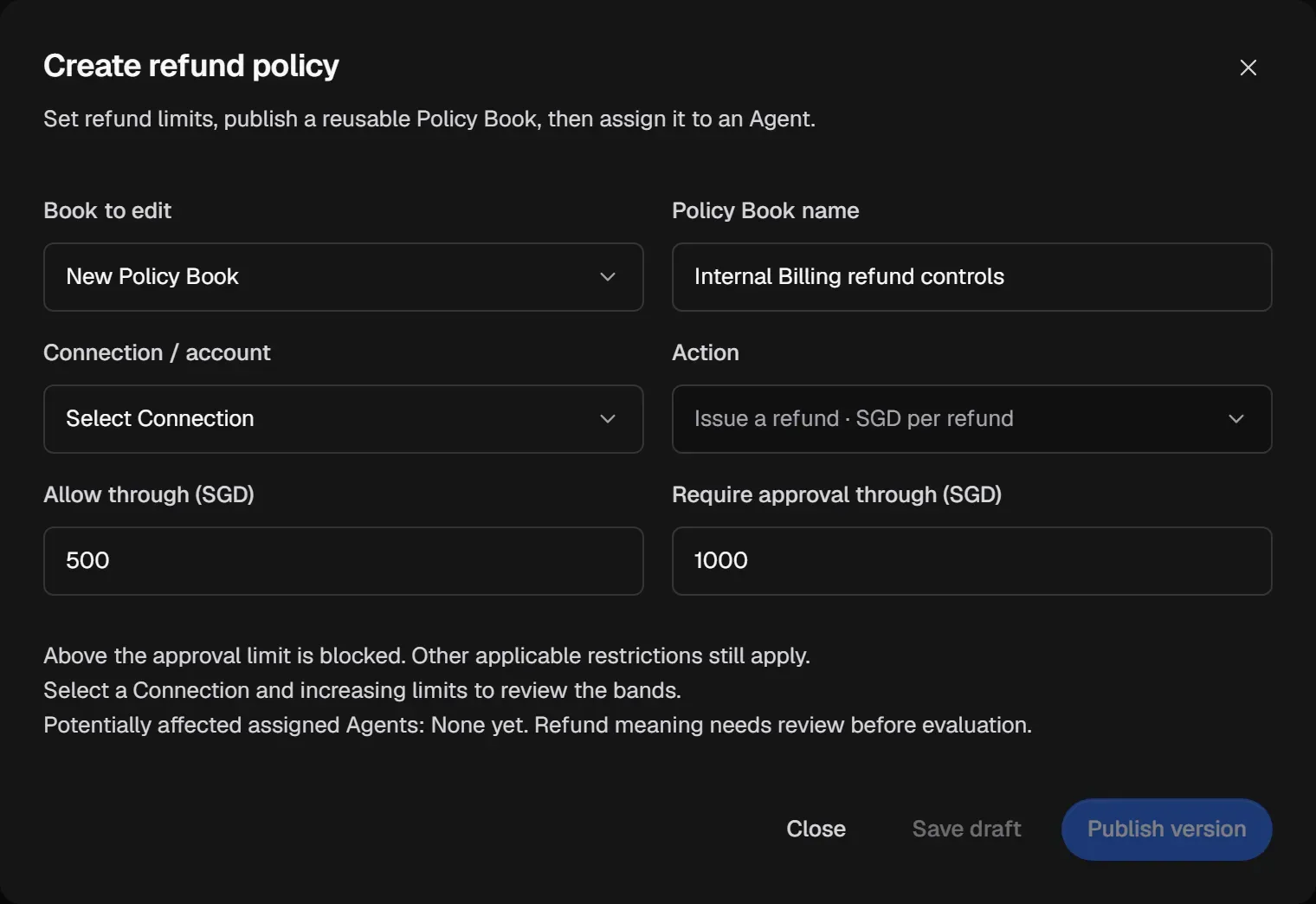
Section titled “Use the refund template”For a common case, select Create refund policy. It builds a three-band refund boundary for one Connection:
-
Choose New Policy (or an existing Policy to edit) and enter a Policy name.
-
Choose the Connection / account and the refund Action.
-
Set Allow through and Require approval through. Amounts above the approval limit are blocked. Other applicable restrictions still apply.
-
Select Save draft, then Publish version.
The template needs the refund tool’s meaning to be confirmed first. If it says “Refund meaning needs review before evaluation”, review the tool.
Assign it
Section titled “Assign it”A published version doesn’t do anything until it applies to an Agent.
- From the Agent: open the Agent, select Policies, then Attach Policy.
- From the Policy: open it and select View assignments to see and manage where it applies.
Change a published Policy
Section titled “Change a published Policy”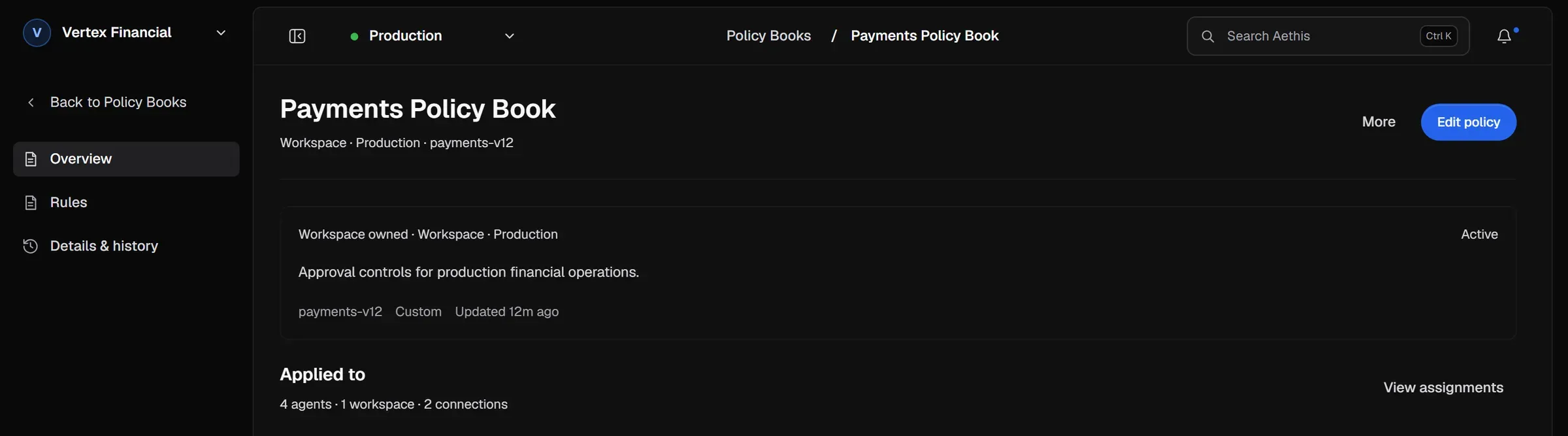
-
Open the Policy and select Edit policy. Aethis creates a draft from the current version.
-
Make your changes and publish a new version.
-
Use Details & history to see earlier versions and Compare Policy Versions to see exactly what changed.
Under More you can Disable Policy (stop enforcing it without deleting it), Enable Policy again, Replace Policy with another active book, or delete it.
Fix a conflict
Section titled “Fix a conflict”A book in Conflict references something that no longer resolves, such as a deleted Connection. Select Edit policy to create a repair draft, remove or replace the unavailable targets, and publish again. Published history is kept.
Check it before you rely on it
Section titled “Check it before you rely on it”- On the Agent’s Tools section, use Evaluate policy to test an exact action without running it.
- Run the Agent in Observe Mode to see what the policy would do to real traffic.
Test the boundary and one value on each side. For the example bands above, check SGD 500, SGD 501, SGD 1,000 and SGD 1,001. An Unresolved result means you still have a gap, an overlap, an unavailable reference or tool meaning that needs review; do not interpret it as Allow.