
Register an Agent
An Agent is the identity your client uses to call tools through Aethis. Register one Agent per workload so each has its own key, policies and records.
Before you begin
Section titled “Before you begin”Decide the Agent’s name, the team that owns it, and the workspace it belongs in. Use a name that describes the job, such as Billing Agent, rather than an implementation detail. You also need:
- permission to register Agents in the target workspace
- any MCP Connections you want to attach already created in that workspace
- a secret manager ready for the one-time access key
- a published Policy, or a named owner who will add one before governed traffic is trusted
Register the Agent
Section titled “Register the Agent”-
Open Agents and select Register Agent.
-
Setup type. Choose how the Agent works, then select Continue:
- MCP-only: the Agent uses MCP tools through Aethis. Choose this for the beta’s MCP-first path.
- Model-only: the Agent sends model requests through a Model Route.
- Combined: both a Model Route and MCP Connections.
Model-only and Combined need a model provider. Direct model routing supports OpenAI only.
-
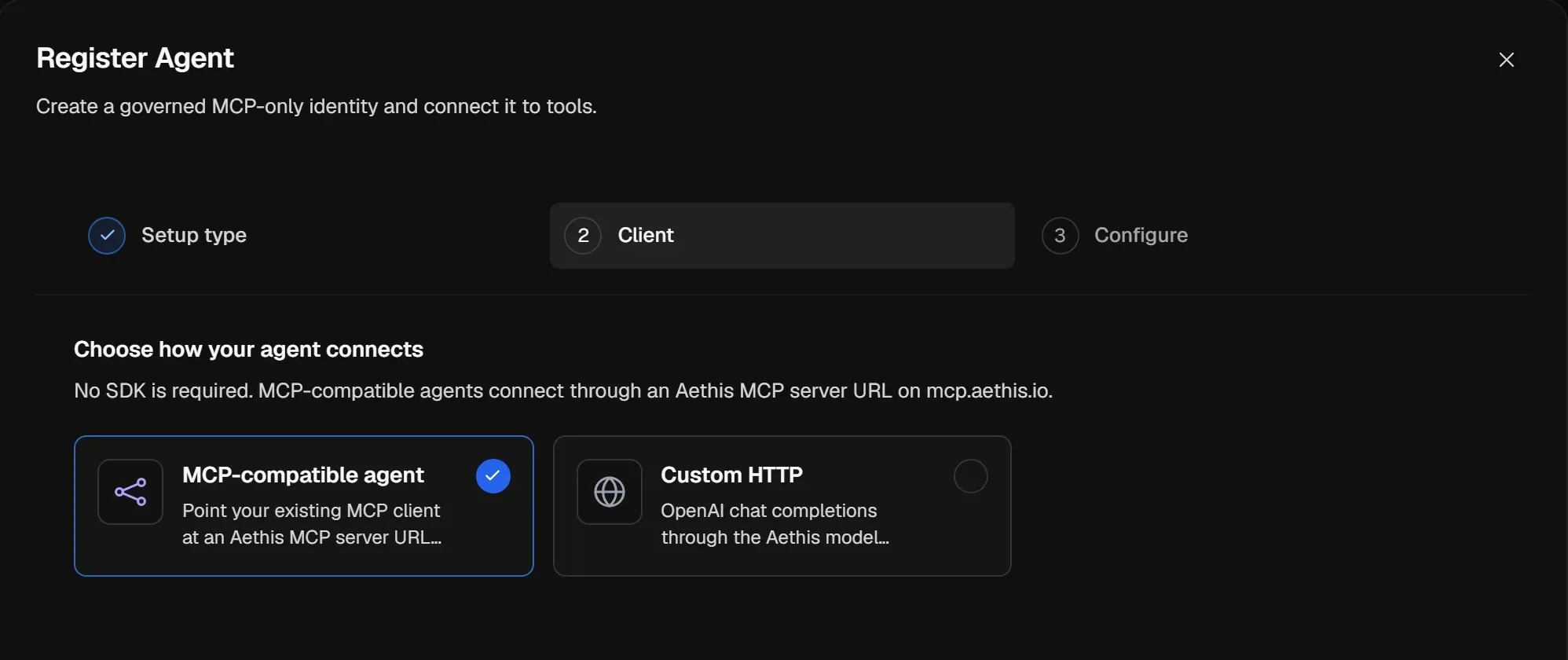
Client. Under Choose how your agent connects, select MCP-compatible agent, then Continue. No SDK is required. Choose Custom HTTP only for a Model-only Agent that sends OpenAI chat completions through the Aethis model gateway.
-
Configure. Enter the Agent Name, choose the Owner and Workspace, and optionally choose MCP Connections from the same workspace. You can assign Connections later.
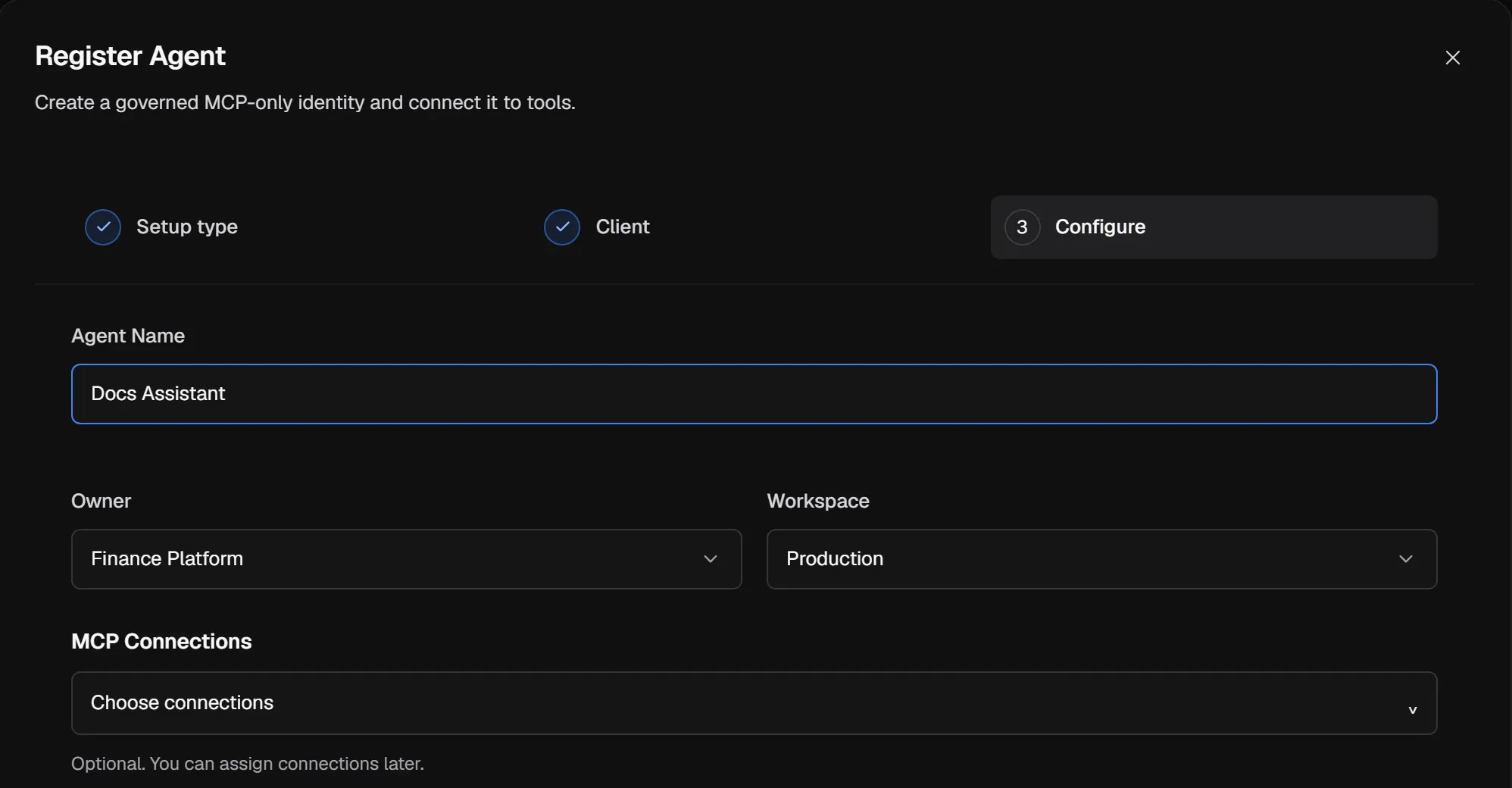
For a Model-only or Combined Agent, also choose the Model Route (a dedicated route is recommended).
-
Select Register Agent.
-
In Agent created, copy the Aethis MCP server URL and the Aethis access key, store the key in your secret manager, and select Done.
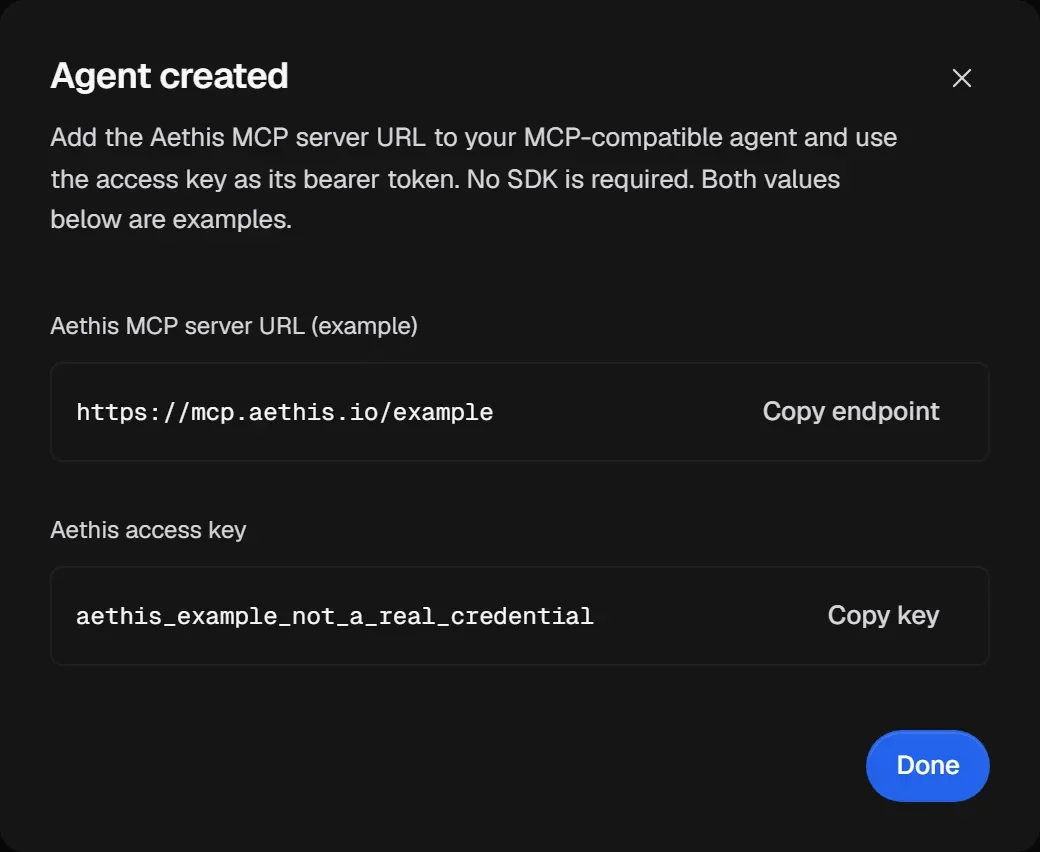
Expected result: the Agent appears in the workspace inventory with its owner and status. Its Overview shows the Agent identity and key fingerprint, while the full key remains only in your secret manager.
Connect your client
Section titled “Connect your client”Configure your MCP-capable agent with the Agent’s Aethis MCP server URL, and send the Aethis access key as a bearer token:
URL: https://mcp.aethis.io/v1/agents/{agent_id}/mcpHeader: Authorization: Bearer <aethis_agent_token>Copy the URL from the dashboard rather than building it by hand. The URL isn’t a secret; the access key is.
Each Agent has one endpoint and one credential, however many Connections it uses. Aethis identifies the Agent from the key, resolves the call through the Agent’s assigned Connections, discovered tools and effective policy, and forwards allowed calls to the right upstream MCP server. Attaching another Connection later doesn’t change your client configuration.
If the client cannot connect, first confirm that it uses the URL copied from this Agent, sends the current access key as a bearer token, and that the Agent is Active. A Paused, Suspended or Disabled Agent is unavailable for a different reason; use the Agent status definitions before rotating a working credential.
Assign Connections
Section titled “Assign Connections”-
Open the Agent and select Connections.
-
Select Attach connection, choose an MCP Connection from the same workspace, and select Attach MCP Connection.
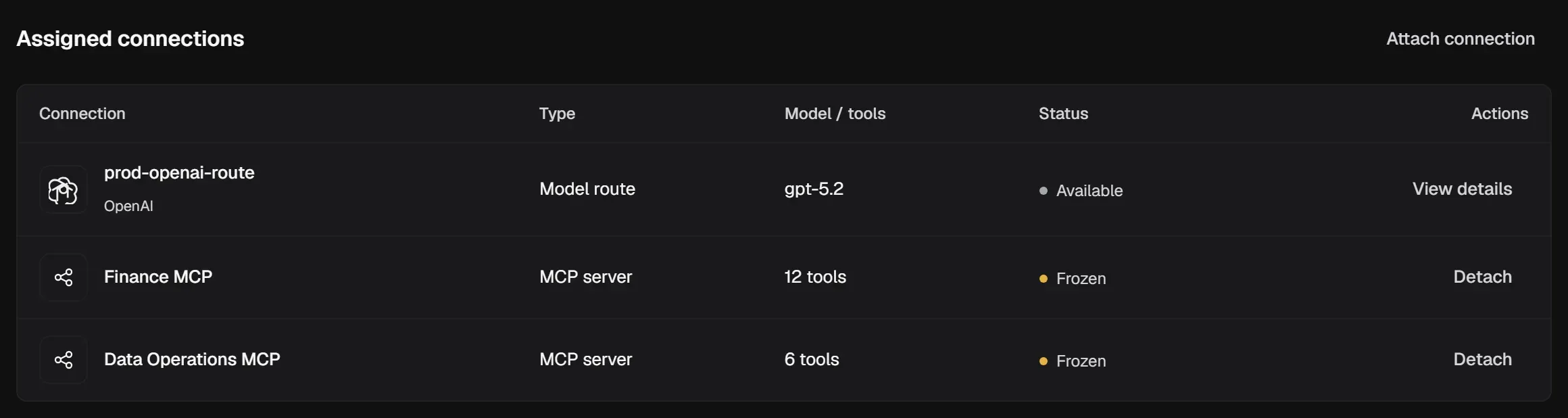
The Status column shows each Connection’s execution boundary. Frozen means tool changes are waiting for review; see Review tool changes. Select Detach to remove a Connection from this Agent.
Attach Policies
Section titled “Attach Policies”-
Open the Agent and select Policies.
-
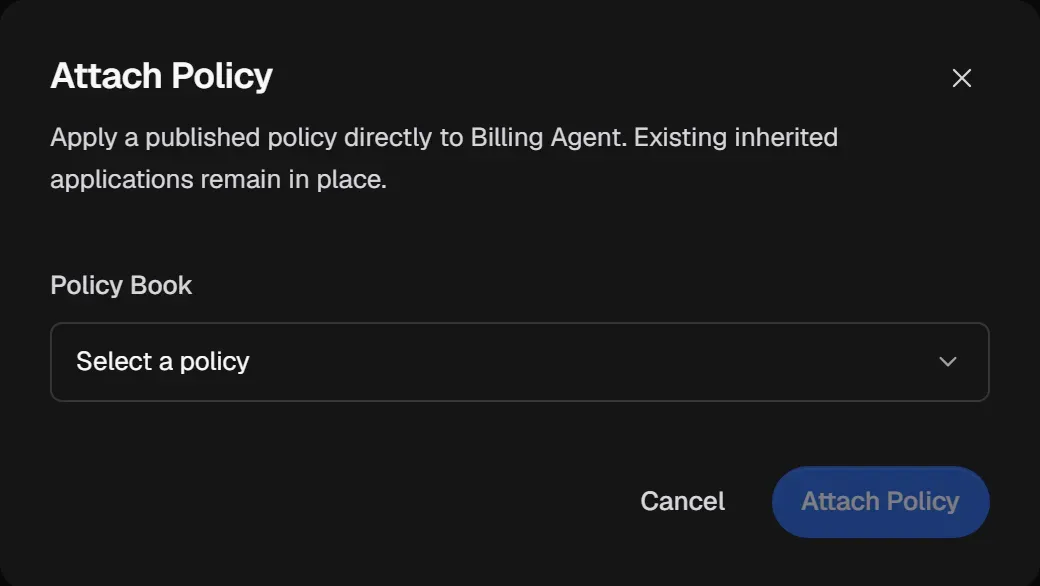
Select Attach Policy, choose a published Policy, and select Attach Policy.
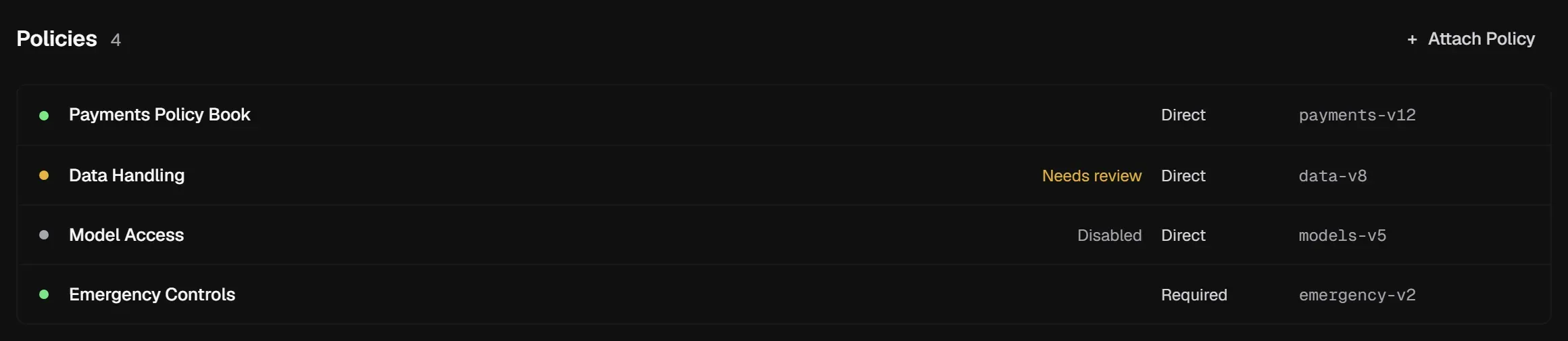
The Policies list shows every book that applies and how it got there: Direct books you can detach; Required books come from the organization and can’t be detached here.
Check tool access
Section titled “Check tool access”The Tools section lists every tool the Agent can reach, the Policies that apply to it, and its Access:
- Conditional: policy evaluates each call. Select Evaluate policy to check an exact action without running it.
- Blocked: policy blocks the tool.
- Unresolved: Aethis can’t evaluate the tool yet, for example because the Connection is paused or the tool’s meaning needs review. The reason is shown underneath.
Set basic controls
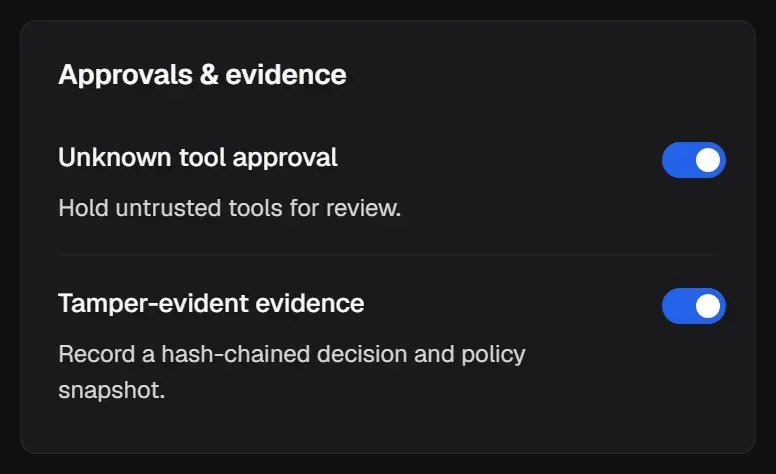
Section titled “Set basic controls”On the Agent’s Overview, Basic controls apply to every call the Agent makes. Turn a control on or off, then select Save Changes at the top of the page.
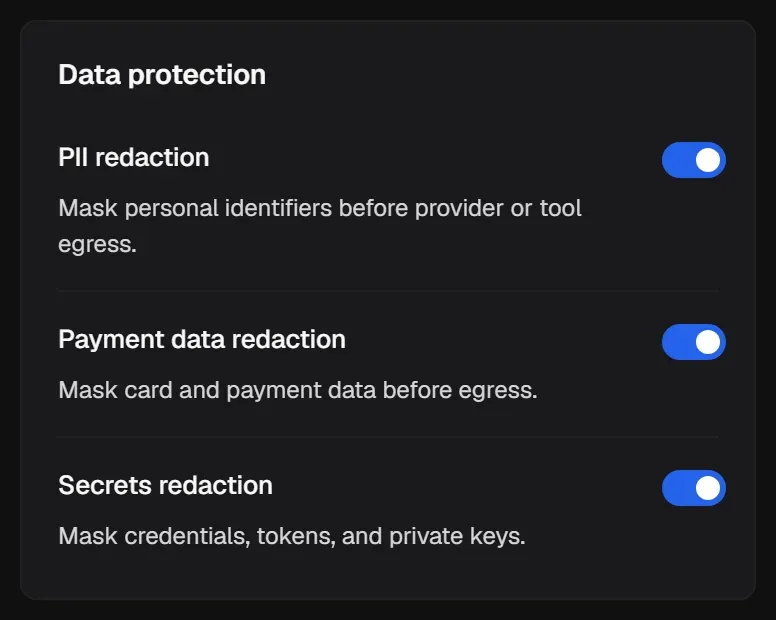
- PII redaction, Payment data redaction and Secrets redaction mask sensitive values before they leave for a provider or tool.
- Unknown tool approval holds untrusted tools for review.
- Tamper-evident evidence records a hash-chained decision and policy snapshot.
Choose Observe or Enforce
Section titled “Choose Observe or Enforce”Each Agent has an Enforcement mode. New Agents default to Observe Mode.
- Observe (the default for new Agents): Aethis evaluates policy and writes an Action Record for each call, but doesn’t block, hold or modify it.
- Enforce: Aethis applies each decision. Block stops the call and Require Approval holds it for a reviewer.
Before relying on Enforce, run representative traffic in Observe and check Activity for would-have-blocked or would-have-required-approval decisions. Confirm that:
- expected writes are allowed or intentionally held
- blocked actions really should stop
- a reviewer covers the Approval Queue during the Agent’s operating hours
- the workload handles a held or blocked call without unsafe automatic retries
- the Agent is in Enforce before you depend on Block or Require Approval to prevent execution
See Observe Mode.
Set a spend budget
Section titled “Set a spend budget”A spend budget tracks an Agent’s spend and limits supported cost-bearing execution at the workspace level. It is separate from your plan’s allowance of governed actions.
-
Open the Agent’s Overview and find Usage & limits.
-
Set the Agent’s Monthly spend cap and Alert at percentage, then select Save Changes. These values track the Agent and provide a warning threshold; do not rely on the Agent cap alone to stop execution.
-
Open Settings > Workspace, then find Workspace spend controls.
-
Set the workspace Monthly spend cap and save the change.
Expected result: the Agent shows its cap, spend and warning threshold, and the workspace shows its saved cap and current spend. When spend reaches the workspace’s enforced ceiling, Aethis stops the next supported cost-bearing execution before it runs. For selection guidance and diagnostics, see Manage spend and usage.
Rotate the key, pause or delete
Section titled “Rotate the key, pause or delete”- Rotate Key replaces the Agent’s access key. Update your client with the new key.
- Pause Route makes the Agent’s model and MCP paths unavailable until you select Resume Route.
- Delete Agent removes it from the workspace and clears its Connection assignments. Its Action Records are kept.
Each of these asks you to type a confirmation phrase, such as ROTATE agent_billing_prod.