
Investigate in Activity
Activity holds every governed action in the workspace. Use it to answer “what did this Agent do, what did Aethis decide, and what happened?”
Two views
Section titled “Two views”- Timeline tells the story in time order, one line per governed action: “Billing Agent requested approval for refund.create.”
- Action Records is a table of records with the action, Agent and target, decision, duration, integrity and time.
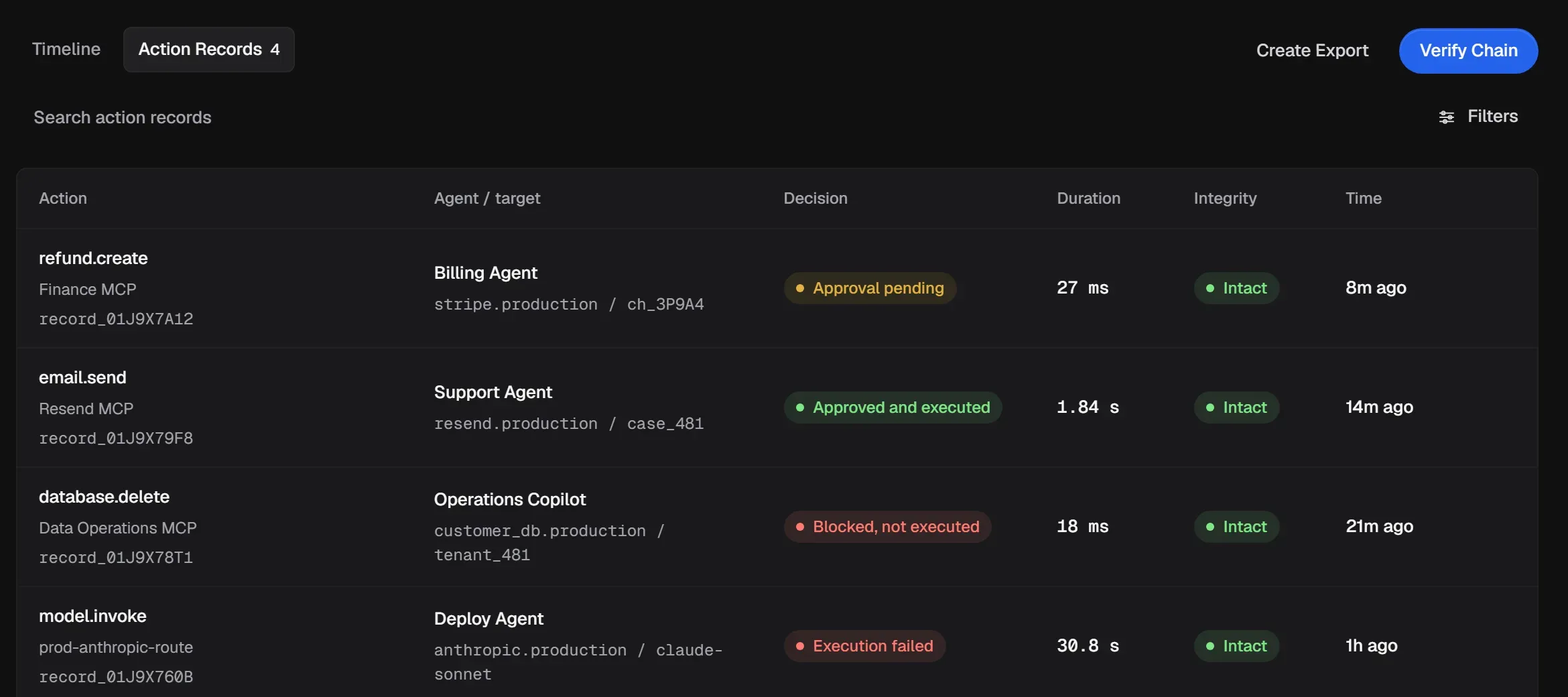
Narrow it down
Section titled “Narrow it down”Select Filters to filter by Outcome, Agent, Connection, date range and time window. Select Clear filters to reset.
Other pages link here already filtered. For example, View Activity on an Agent, or View related activity on an Alert.
Start with the smallest useful scope: one workspace, one Agent or Connection, and the time window around the event. This reduces unrelated records in both the investigation and a later Verify Chain check.
Follow one action end to end
Section titled “Follow one action end to end”-
In Timeline, find the action and select View Execution Trace.
-
The trace shows each step in order: the Request as captured, the Agent that was identified, any correlated Model request, the Governed action and its decision, the Policy and matched rule, any Approval request, the Action Record, and the Outcome.
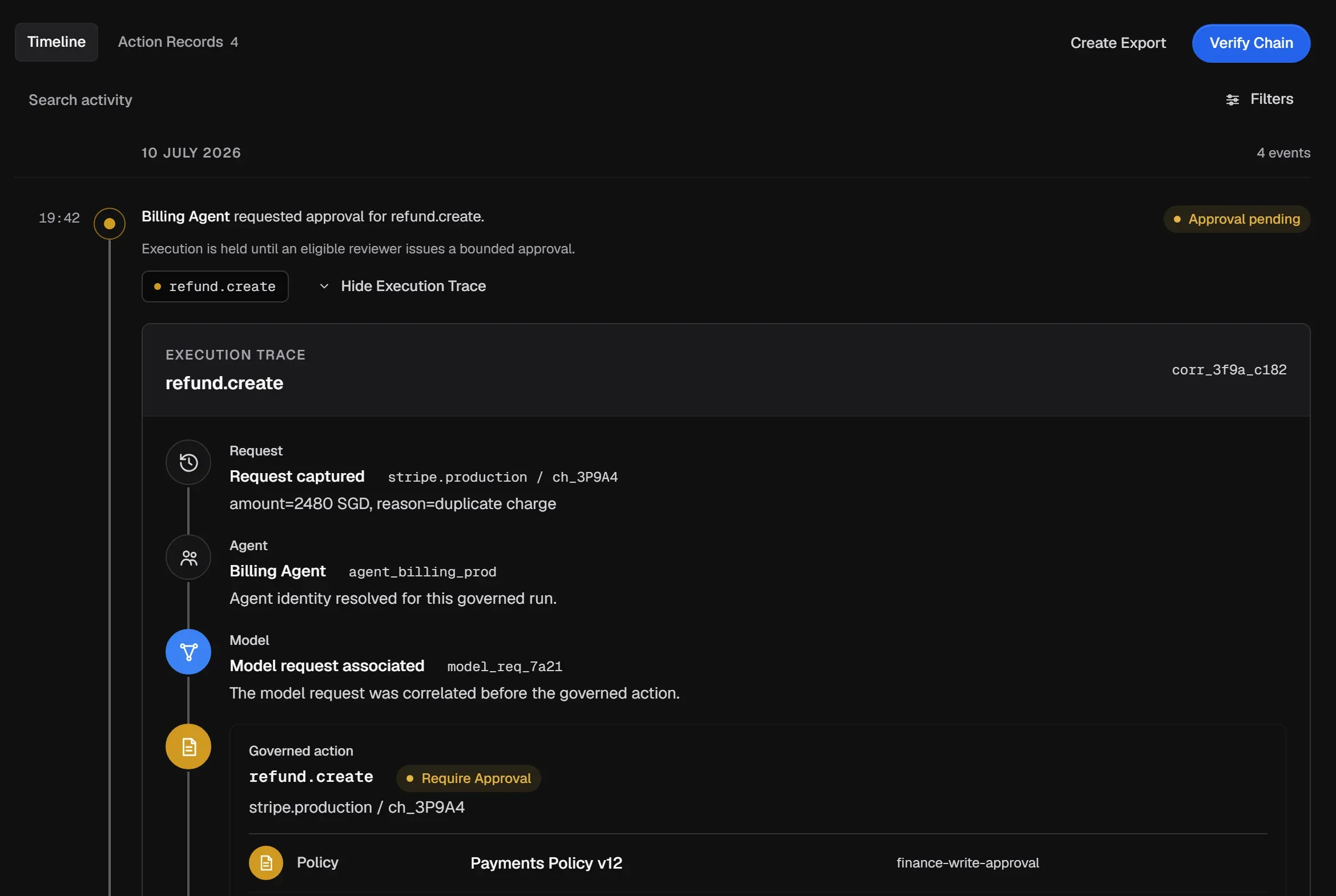
-
Select Inspect on the Action Record step (or select a record in Action Records) to open the record.
Select Hide Execution Trace to collapse it.
Read the Action Record
Section titled “Read the Action Record”The record opens in a drawer with three tabs.
Summary: the Agent, Connection, Policy decision, duration, created time, the Outcome in plain words, the resource, and the fingerprints.
Governance: the Policy version, Matched rule, decision and approval request, and the Record lifecycle: request captured, Agent identity resolved, capability fingerprinted, policy evaluated, approval request created, and so on, each with a time.
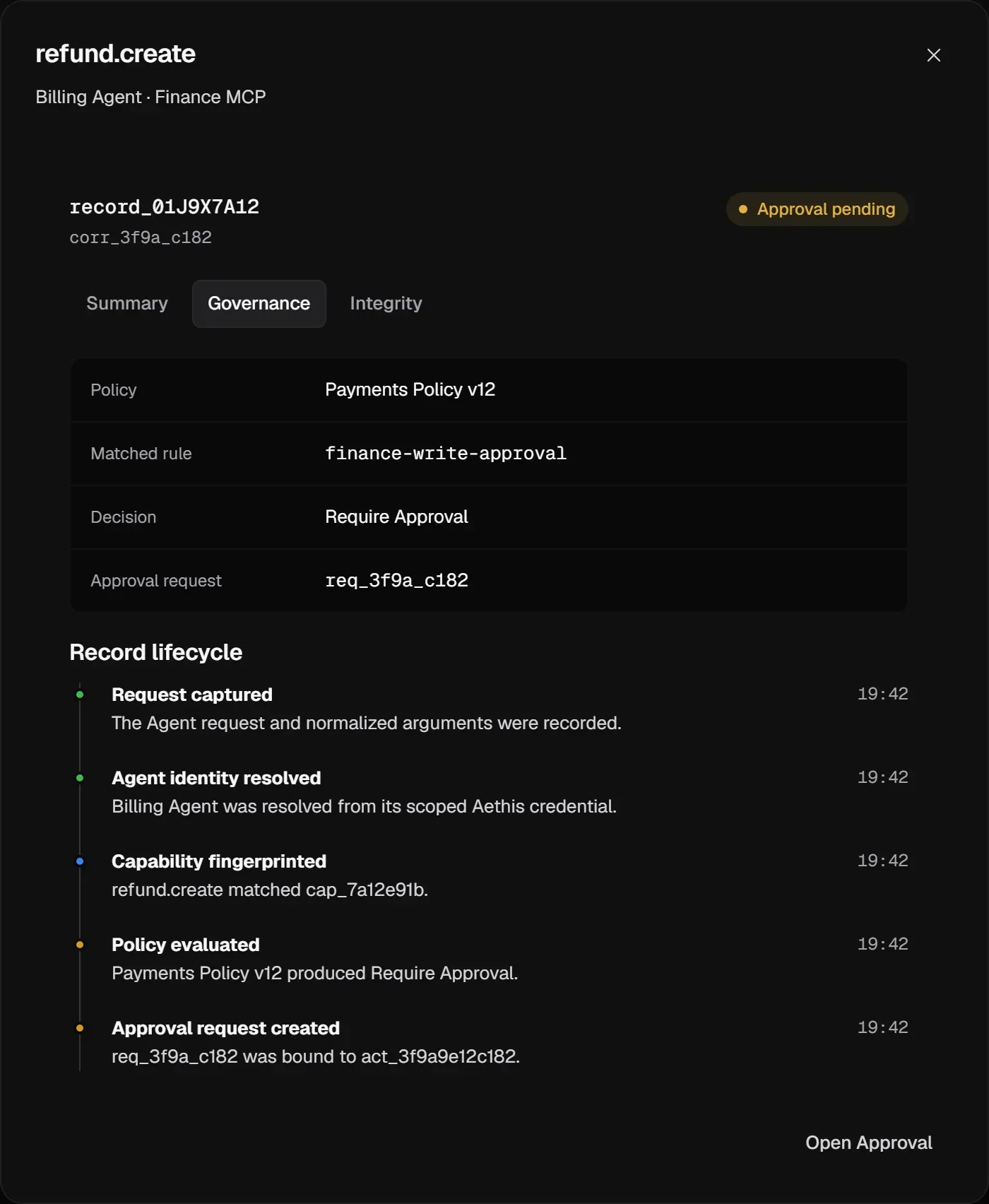
Integrity: the Record link status, the Chain hash, the previous record in the chain (Open Previous Record), and Retention.
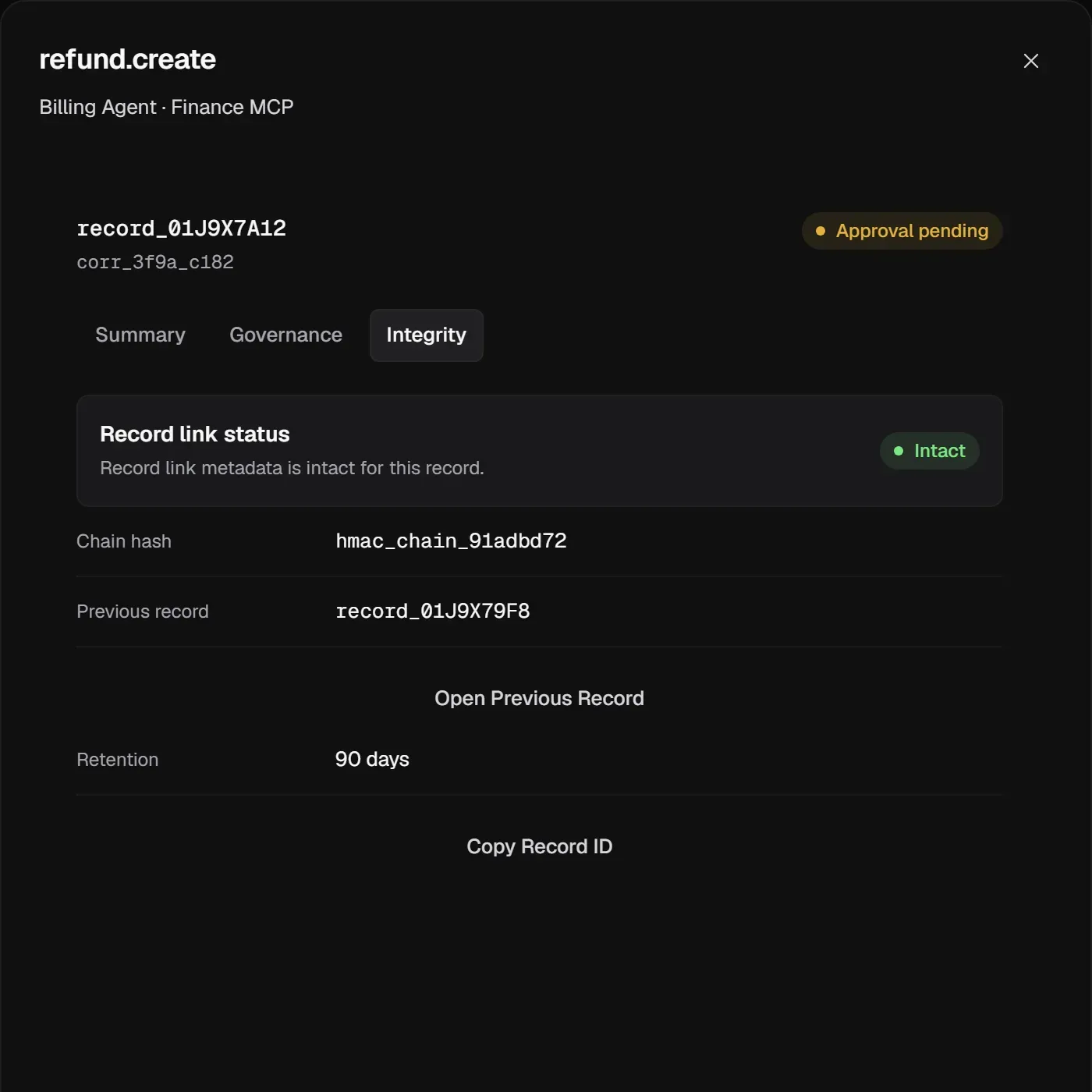
Copy Record ID copies the ID for a support ticket or an audit note.
When the record is tied to an approval, Open Approval takes you to the request.
Check integrity
Section titled “Check integrity”Action Records are tamper-evident: each record’s chain hash is chained to the previous one with HMAC, and records are stored append-only.
-
Select Verify Chain.
-
Choose the Verification Scope: the current workspace with your current filters, or the selected record only.
-
Select Run Verification. Aethis checks record consistency for that scope without changing any record.
Anything other than Intact needs a look. See integrity statuses and Verify a governance boundary for a full review procedure.
Common questions
Section titled “Common questions”Was the action blocked, or did it fail? Look at the outcome. Blocked, not executed means policy stopped it at Aethis and nothing reached upstream. Execution failed means Aethis allowed it and it is known that the call didn’t take effect.
What does Outcome unknown mean? The call may have reached upstream, but Aethis didn’t get a definite result, for example because of a timeout. It is not a failure: the side effect may have happened. Check the upstream system before you retry.
Was an approved action actually run? Approved, awaiting execution means approved but not yet run. Execution in progress means it has been dispatched, and Execution succeeded means it ran.
Why can I not find the call? Confirm the workspace and filters first. Then confirm that the client used the Agent’s Aethis endpoint: calls that bypass Aethis do not create Action Records.
What should I save for escalation? Copy the Record ID and note the workspace, time window, Agent, Connection, outcome and integrity status. Do not paste access keys or full sensitive arguments into a ticket.