
Connect an MCP server
A Connection tells Aethis where to forward an Agent’s allowed tool calls. You keep your existing MCP server; Aethis sits in front of it.
your agent ──► the Agent's Aethis MCP endpoint (mcp.aethis.io) ──► Aethis governance ──► your MCP server (the Connection)Your agent doesn’t connect to each Connection separately. It uses one endpoint per Agent, https://mcp.aethis.io/v1/agents/{agent_id}/mcp, and Aethis resolves every Connection assigned to that Agent behind it: Agent, assigned Connections, discovered capabilities, effective policy, then the upstream MCP server.
Before you begin
Section titled “Before you begin”- The MCP server’s HTTPS URL, and how it authenticates: Bearer, OAuth, mTLS or None.
- Permission to add Connections in the workspace. Your organization may allow only approved servers.
- A non-production server or account for the first discovery and policy test, when the upstream service can cause side effects.
- The server owner’s confirmation of the tool names, parameter schema, amount units and environment you expect to discover.
Add the Connection
Section titled “Add the Connection”-
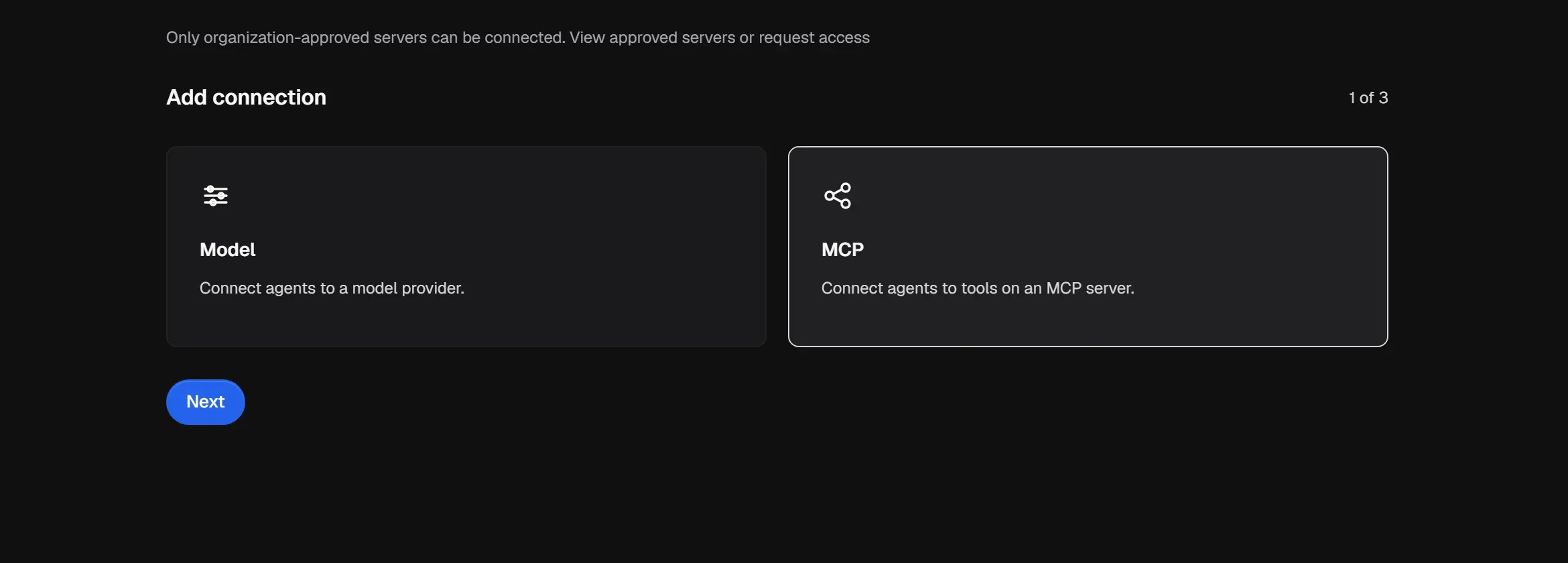
Open Connections and select Add connection.
-
Choose MCP (Connect agents to tools on an MCP server), then select Next.
-
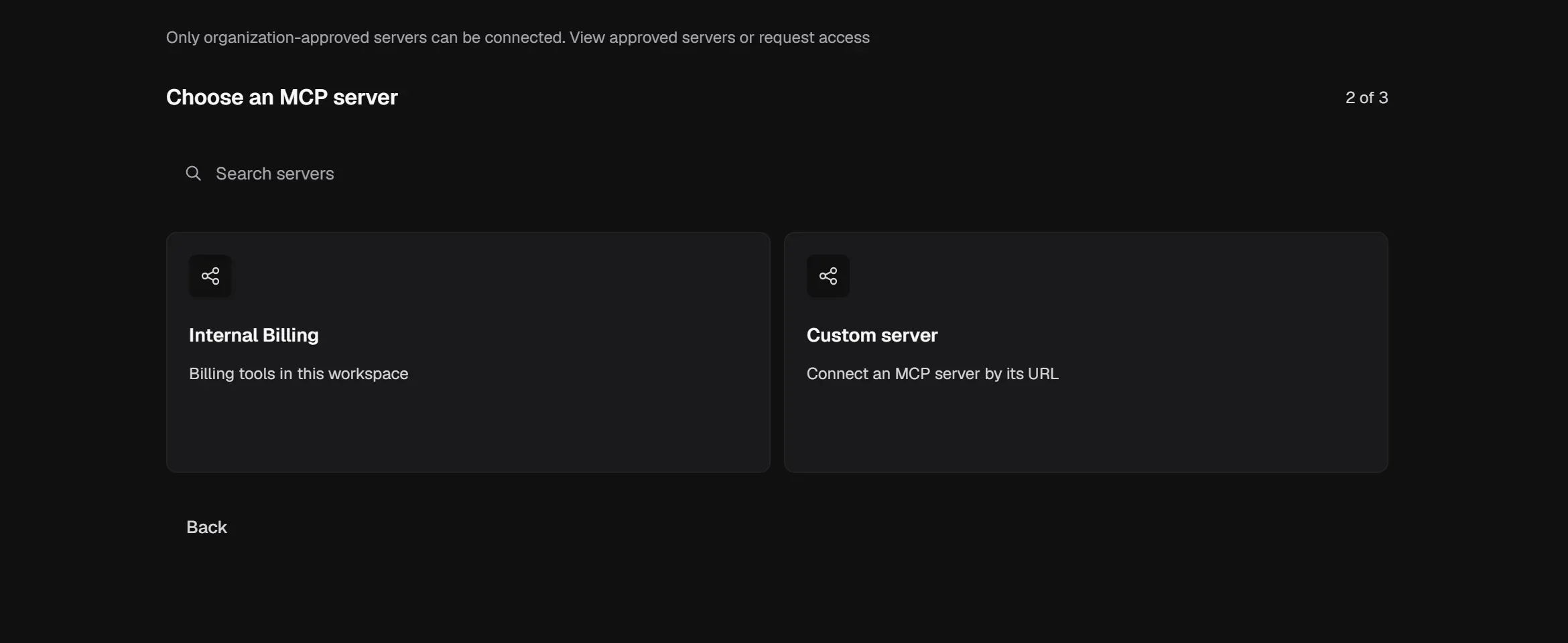
Choose the server. Pick one your organization has already set up, or select Custom server to connect an MCP server by its URL.
-
For a custom server, enter a Connection name, the MCP server URL (use the HTTPS address provided by your server), and the Authentication method.
-
Select Add Connection. In Connection added, select Open connection.
Connect the account and refresh tools
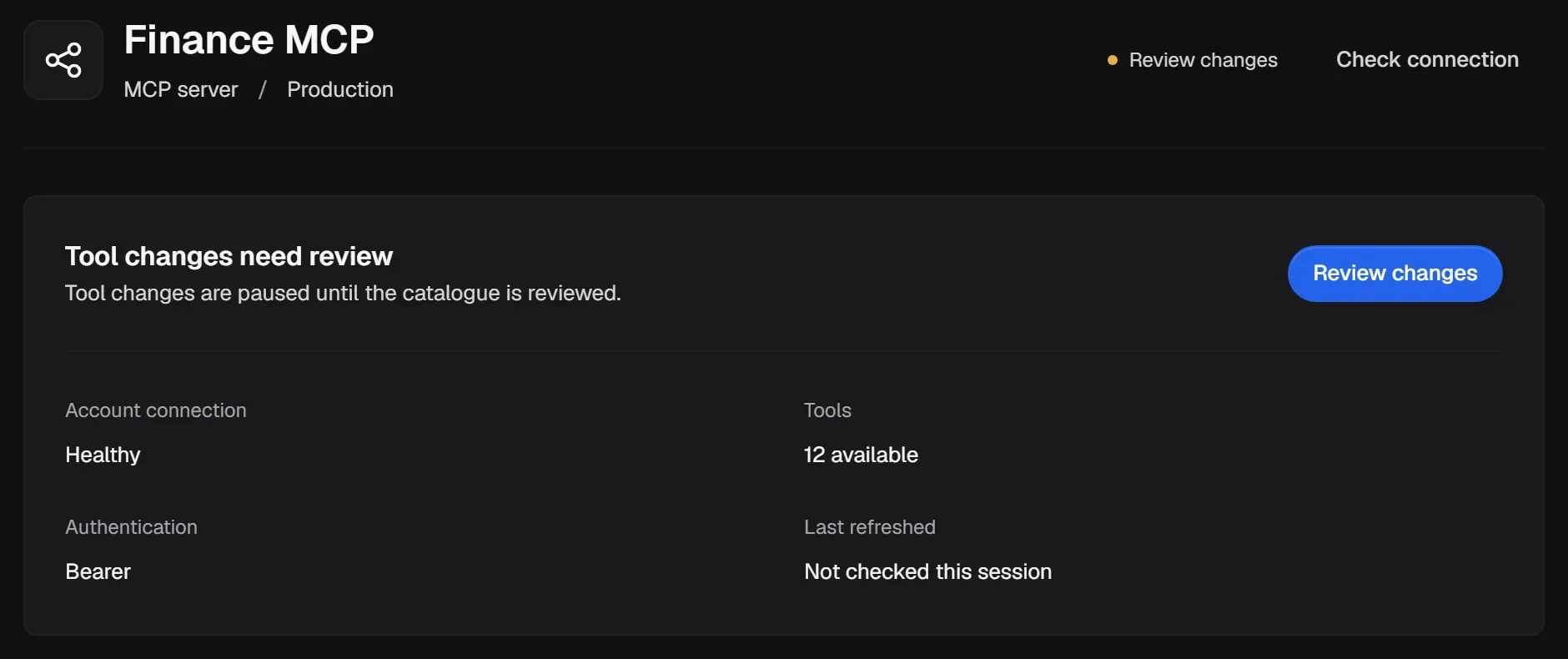
Section titled “Connect the account and refresh tools”A new Connection shows what it needs next at the top of its Overview.
-
If it shows Connect account, select it and follow the authorization prompts for the server.
-
Select Refresh tools. Aethis discovers the server’s tools and fingerprints each definition. Discovery doesn’t count as a governed action.
-
Review anything flagged. See Review tool changes.
-
When the Connection shows Ready, its tool catalogue is current and available for policy checks.
Select Check connection at any time to test that the server is reachable.
Expected result: the Connection is Ready, its health is Healthy, and the Tools section shows the catalogue you expected. Ready means the catalogue can participate in policy checks; an Agent still needs the Connection assigned and an applicable Policy before you rely on the path.
Assign it to Agents
Section titled “Assign it to Agents”Open an Agent, select Connections, then Attach connection. You can only attach Connections from the Agent’s own workspace. The Connection’s Assigned agents section lists every Agent using it.
You don’t need to change the Agent’s client configuration. The new Connection’s tools become reachable through the Agent’s existing Aethis MCP endpoint, subject to its Policies.
After assignment, open the Agent’s Tools section. A tool should be Conditional, Blocked or Unresolved with a reason. Use Evaluate policy for a harmless example such as a read against a non-production resource; policy evaluation does not execute the action.
Diagnose connection states
Section titled “Diagnose connection states”| State | What to check |
|---|---|
| Connect account | Complete the server’s authentication flow. Do not paste credentials into a support ticket. |
| Refresh tools | Run discovery, then compare the returned catalogue with the server owner’s expected schema. |
| Review changes | Review every pending definition change. Calls remain frozen until the catalogue decision is complete. |
| Review tool meaning | Confirm semantic details such as effect, amount unit and currency before relying on amount-based policies. |
| Unavailable | Use Check connection, then verify the HTTPS URL, authentication and upstream health. |
Manage the Connection
Section titled “Manage the Connection”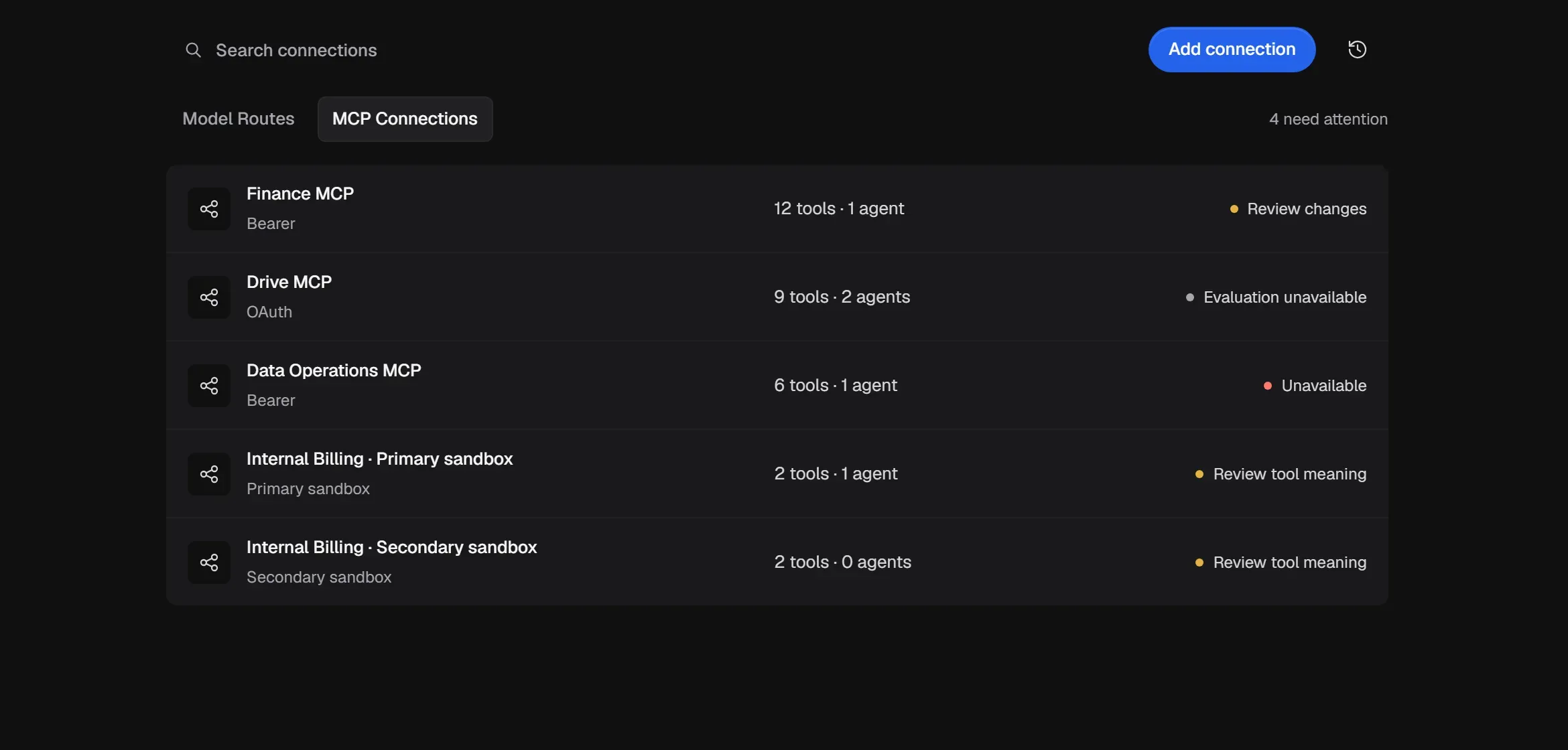
The Connections list shows each Connection’s usage and status. Open one to see its Overview, Tools, Assigned agents and Settings.
- Settings shows the name, Connection ID, server URL, authentication and execution boundary. Select Edit connection to rename it; the Connection ID stays the same.
- Delete connection removes it from the workspace and removes that path for every assigned Agent. Historical Action Records are kept. Aethis asks you to type a confirmation phrase.
Model Routes (OpenAI)
Section titled “Model Routes (OpenAI)”The Model Routes tab holds routes for direct model requests through the Aethis Model Gateway. Direct model routing supports OpenAI chat completions.
- Select Add connection, choose Model, and create the route.
- Save the generated Gateway URL when it is shown.
- Assign the route to a Model-only or Combined Agent in the same workspace.
- Confirm the route is Ready, then use Activity to verify that a model request produces the expected policy decision and Action Record.
The Gateway URL is the model route’s endpoint. It is distinct from the Agent’s Aethis MCP server URL used by MCP-compatible clients, so copy the URL shown for the route instead of substituting the MCP endpoint.
Expected result: the Agent lists the assigned Model Route and governed model requests appear in Activity. If the route shows Verify route, check its workspace allocation. For Degraded or Unavailable, inspect the route and provider health before retrying.