
Review the Approval Queue
When a rule says Require Approval, Aethis holds the action and adds a request to the Approval Queue. Your decision applies to that exact action only. See Approvals bound to an exact action.
Before you begin
Section titled “Before you begin”You need a role that can review requests in the request’s workspace. You also need enough business context to judge the target, amount and reversibility. If you cannot establish that context, deny the request with a clear reason.
Find the request
Section titled “Find the request”Open Approval Queue. The sidebar badge counts active requests.
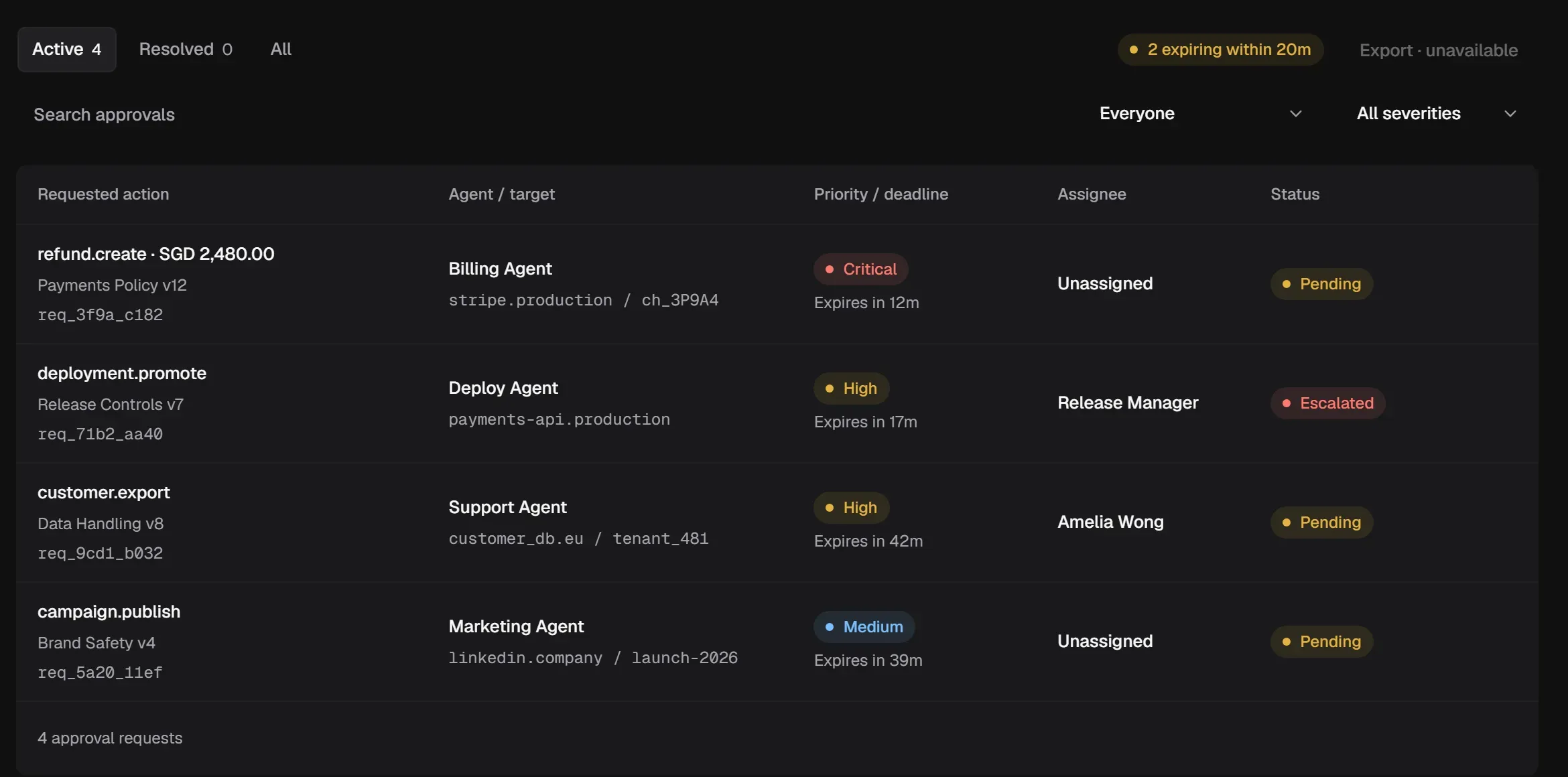
- Active, Resolved and All switch between open and decided requests.
- Filter by assignee (Everyone, Assigned to me, Unassigned), by Expiring within 20m, or by severity.
- Each row shows the requested action, the Agent and target, the priority and deadline, the assignee and the status.
Start with requests that are about to expire. An expired request doesn’t run.
Check the exact action
Section titled “Check the exact action”Select a request to open it.
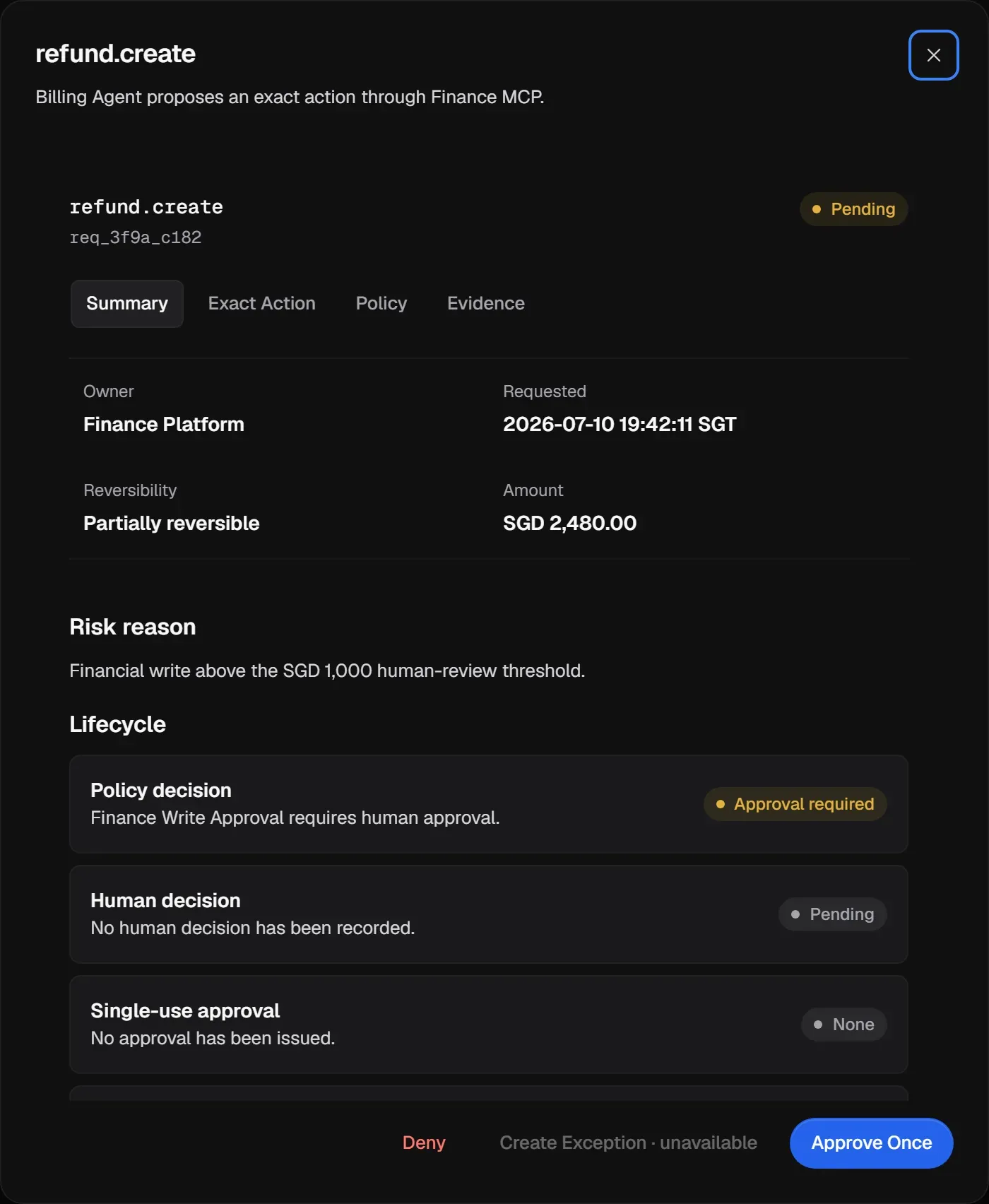
Work through the tabs:
| Tab | Check |
|---|---|
| Summary | Owner, requested time, Reversibility, amount, the Risk reason, and the Lifecycle. |
| Exact Action | Agent, MCP Connection, capability, Resource, Arguments summary, and the action and capability fingerprints. |
| Policy | The Policy version, the Matched control, and how organization, workspace and Agent-level policy each evaluated. |
| Evidence | The linked Action Record. Select Open Action Record to see it in Activity. |
Ask yourself: is this the right target, the right amount, and something the Agent should be doing? If you can’t tell, deny it and say why.
For example, a request for refund.create should name the expected customer or transaction resource, show the intended amount and currency, and match the reason for the refund. A familiar tool name is not enough if the resource or arguments differ.
Decide
Section titled “Decide”-
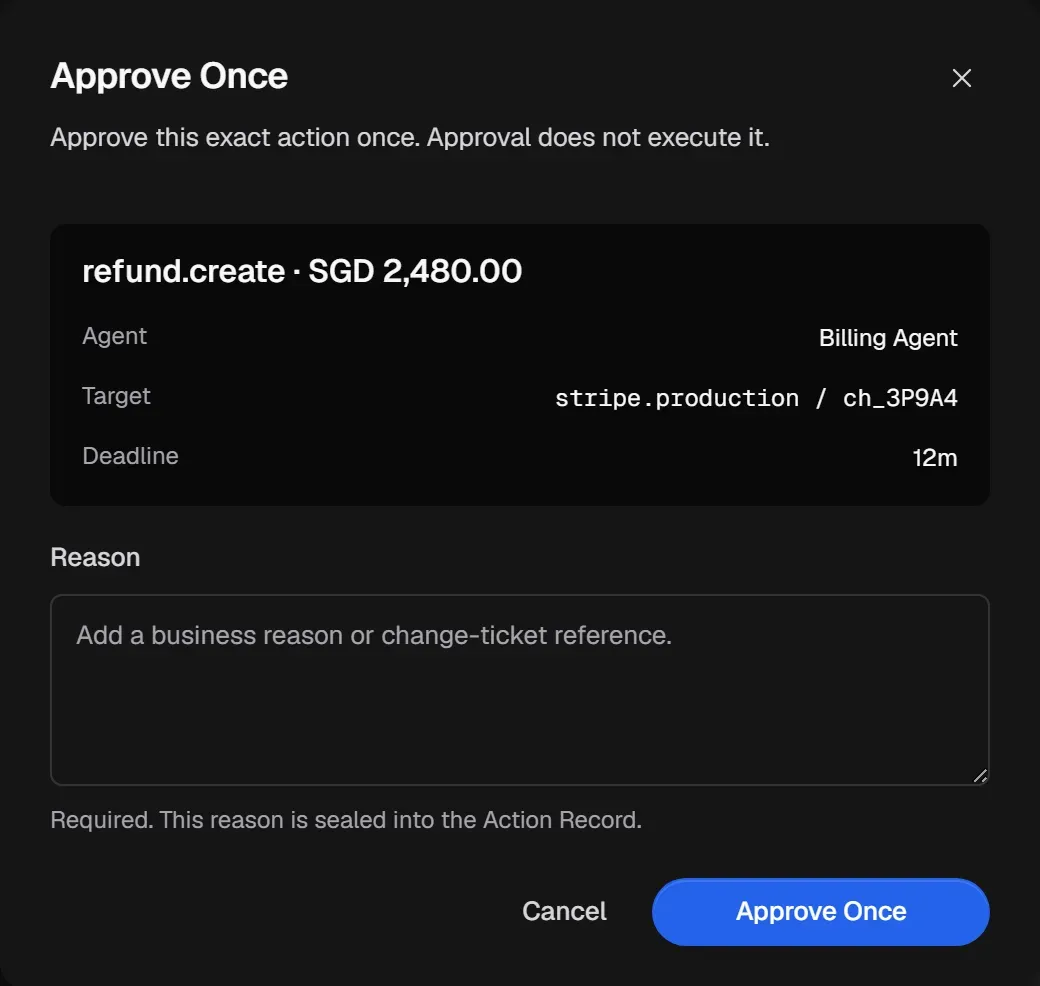
Select Approve Once or Deny.
-
Enter a Reason. It is required and is recorded in the Action Record.
-
Confirm with Approve Once or Deny Request.
- Approve Once issues a single-use approval for this exact action. It doesn’t run the action. When the Agent makes the same call, it runs once. Any change to the action means a new evaluation.
- Deny refuses the request. The action isn’t executed through this request.
Expected result: the request moves out of Pending. An approval becomes Approved, awaiting execution until the Agent submits the matching call; a denial becomes Denied and does not execute through that request.
Follow the outcome
Section titled “Follow the outcome”The request’s Lifecycle shows the policy decision, the human decision, the single-use approval and the execution result as separate steps. An approved action moves from Approved, awaiting execution to Execution in progress and then Execution succeeded. It can also end in Execution failed, or in Outcome unknown if the result was lost; an unknown outcome is never reported as failed. Open the Action Record to see the final outcome.
If an approved request stays Approved, awaiting execution, check whether the Agent retried the exact action before the approval expired. A changed target, amount, arguments or capability fingerprint is a different action and needs a new evaluation. If the result is Outcome unknown, check the upstream system before allowing any retry.
Bring in more reviewers
Section titled “Bring in more reviewers”Invite teammates with a reviewing role. See Manage your organization and workspaces, or run the Bring in an approval reviewer journey from Get started.